
TobenONE DisplayLink Docking Station 3 Monitors with 120W Power Adapter
4.4Editor score
Supports triple 4K 60Hz displays
Includes 120W power adapter
18 ports for maximum connectivity
Compare the top 10 docking stations for 3 monitors to find the perfect multi-screen solution for your laptop workspace today.
Finding the right docking station for 3 monitors can transform your laptop into a powerful workstation. You need reliable video output, fast data transfer, and stable charging to handle your daily tasks without interruption.
We evaluated ten top-rated models based on port variety, display capabilities, and overall build quality. Our comparison covers everything from budget-friendly hubs to enterprise-grade solutions designed for heavy multitasking.
Each pick highlights specific strengths and limitations to help you match a dock to your workflow. Please note that availability and pricing change frequently so check current listings before purchasing.
4.4Editor score

4.4Editor score

4.3Editor score
This side-by-side comparison highlights the key specifications and capabilities of each selected docking station to help you identify the best fit for your specific laptop and monitor setup.


This Selore docking station delivers impressive value for those seeking a triple monitor setup on a budget. With a rating of 4.3 stars it is praised for its robust port selection and reliable performance across Windows laptops.
We may earn a commission when you buy through this link, at no additional cost to you.
The inclusion of three HDMI ports allows for flexible display configurations while the 10Gbps USB transfer speeds ensure that your data moves quickly between devices. The dedicated button for screen control adds a unique touch to managing your workspace efficiently.
While it lacks a power adapter in the box and requires specific USB-C port support on your laptop the performance it offers relative to its cost makes it a strong contender. Users should verify their laptop supports DisplayPort Alt Mode before purchasing.
If you are looking for an affordable way to expand your workspace with three screens this hub is a smart choice. It balances functionality and cost effectively for most standard productivity tasks.
This dock supports triple 4K extended displays on Windows via MST providing a spacious canvas for multitasking.
USB 3.1 ports offer 10Gbps speeds allowing for rapid file transfers between external drives and your laptop.
We may earn a commission when you buy through this link, at no additional cost to you.
This Selore model stands out with its integrated smart display that shows weather and charging status. Rated 4.3 stars it appeals to users who want a sleek vertical dock with extra smart features.
We may earn a commission when you buy through this link, at no additional cost to you.
The variety of video outputs including three HDMI and two DisplayPort ports gives you flexibility in how you connect your monitors. The privacy button lets you instantly turn off external screens for quick confidentiality during meetings.
However the smart display requires a firmware update for some settings and Mac users are limited to mirror mode. The lack of an included power adapter is a minor drawback to consider before buying.
For those who value smart features alongside standard docking functions this station is a great pick. It brings a modern touch to your desk setup with useful real-time information.
The built-in LCD syncs weather data via Wi-Fi allowing you to check forecasts without opening apps.
Double-pressing the power button turns off all external monitors instantly keeping your content private.
We may earn a commission when you buy through this link, at no additional cost to you.
The Plugable UD-MSTH3 is a standout choice for Windows users who want a plug-and-play experience. With a 4.4 rating it is highly regarded for its driverless functionality and stable connectivity.
We may earn a commission when you buy through this link, at no additional cost to you.
It supports triple displays with one 4K 60Hz and two 1080p 60Hz screens which is ideal for detailed work. The inclusion of a 2.5GbE Ethernet port ensures fast and reliable internet connectivity without relying on Wi-Fi.
While it is not ideal for Mac users who need multiple extended displays the performance on Windows is exceptional. The dedicated 30W USB-C port adds convenience for charging phones while you work.
If you prioritize ease of use and fast networking this dock is an excellent choice. It removes the hassle of driver installations while delivering professional-grade performance.
This dock works instantly with Windows 11 and newer without needing any driver installations.
The 2.5GbE Ethernet port provides faster internet speeds than standard gigabit ports.
We may earn a commission when you buy through this link, at no additional cost to you.
This TobenONE dock is a powerhouse for professionals needing maximum display flexibility. Rated 4.4 stars it excels in providing triple 4K 60Hz support via DisplayLink technology across multiple operating systems.
We may earn a commission when you buy through this link, at no additional cost to you.
The inclusion of a 120W power adapter ensures you have enough wattage to run your laptop and all peripherals without worrying about power shortages. This makes it a truly complete solution for heavy workloads.
While you must install drivers and you cannot stream protected content like Netflix the flexibility it offers is unmatched. It supports up to four monitors on Windows which is rare in this price range.
If you need the highest resolution and most monitors this dock is worth the investment. It is designed for users who demand performance and are willing to set up drivers.
This dock allows triple 4K 60Hz outputs providing crystal clear visuals for creative tasks.
The included 120W adapter guarantees stable power delivery even when all ports are in use.
We may earn a commission when you buy through this link, at no additional cost to you.
This Plugable model is designed with enterprise needs in mind offering TAA and NDAA compliance. It has a 4.4 rating and is highly valued for its reliability in business environments.
We may earn a commission when you buy through this link, at no additional cost to you.
It enables triple monitor support on Macs where native support is limited which is a significant advantage. The front USB-C port provides 20W charging for phones while your laptop charges at 100W.
However like many DisplayLink docks it does not support protected content playback. You will need to install drivers on Mac systems to enable the full range of ports.
For IT departments and professionals needing secure and reliable connectivity this dock is a solid choice. It balances compliance with practical functionality for diverse workstations.
This dock meets TAA and NDAA standards making it suitable for government procurement.
DisplayLink support enables extended displays on Macs that normally support only one external screen.
We may earn a commission when you buy through this link, at no additional cost to you.
This TobenONE dock offers an impressive array of ports making it a hub for complex setups. With a 4.3 rating it is praised for its capacity to handle many peripherals simultaneously.
We may earn a commission when you buy through this link, at no additional cost to you.
The nine USB ports are ideal if you have numerous drives and accessories to connect. Triple 4K 60Hz display support ensures your video quality remains sharp even with multiple screens.
It is specifically designed for Windows and Chrome OS so Mac users should look elsewhere. You will need to provide your own power adapter of at least 65W for stable operation.
If you need the most connections possible in one dock this model is a top pick. It simplifies a cluttered desk by centralizing all your device connections.
With nine USB ports you can connect nearly every peripheral without needing extra hubs.
Triple 4K 60Hz support delivers smooth visuals for video editing and detailed spreadsheets.
We may earn a commission when you buy through this link, at no additional cost to you.
This Acer dock is known for its sturdy aluminum construction and high reliability with a 4.5 rating. It comes with a 110W adapter which is often missing from other docks in this category.
We may earn a commission when you buy through this link, at no additional cost to you.
The security slot is a thoughtful addition for shared workspaces ensuring your equipment stays secure. Triple 4K support on Windows via DSC provides excellent resolution for demanding tasks.
Mac users will find it limited to mirroring which may not suit extended desktop workflows. The requirement for DSC support on your laptop is also a consideration for 4K performance.
If you prioritize build quality and included power this dock is a fantastic choice. It offers a premium feel with solid performance for most users.
The integrated security slot allows you to lock the dock to your desk for safety.
The aluminum body helps dissipate heat ensuring stable performance during long work sessions.
We may earn a commission when you buy through this link, at no additional cost to you.
This Plugable dock is optimized for hybrid teams offering reliable connectivity across various operating systems. It has a 4.2 rating and is recognized for its ability to bypass single display limits on Apple devices.
We may earn a commission when you buy through this link, at no additional cost to you.
It supports three HDMI displays which is great for those with HDMI monitors. The 100W charging ensures your laptop stays powered during intensive multi-screen tasks.
You will need to install drivers for Mac systems and it does not work with Linux. However for Windows and Chrome OS it provides a smooth plug-and-play experience.
For organizations deploying docks to multiple employees this model is a dependable option. It balances performance with ease of use for IT management.
This dock enables multiple extended displays on M1 and M2 Macs via DisplayLink technology.
A built-in Gigabit Ethernet port ensures stable wired internet connections.
We may earn a commission when you buy through this link, at no additional cost to you.
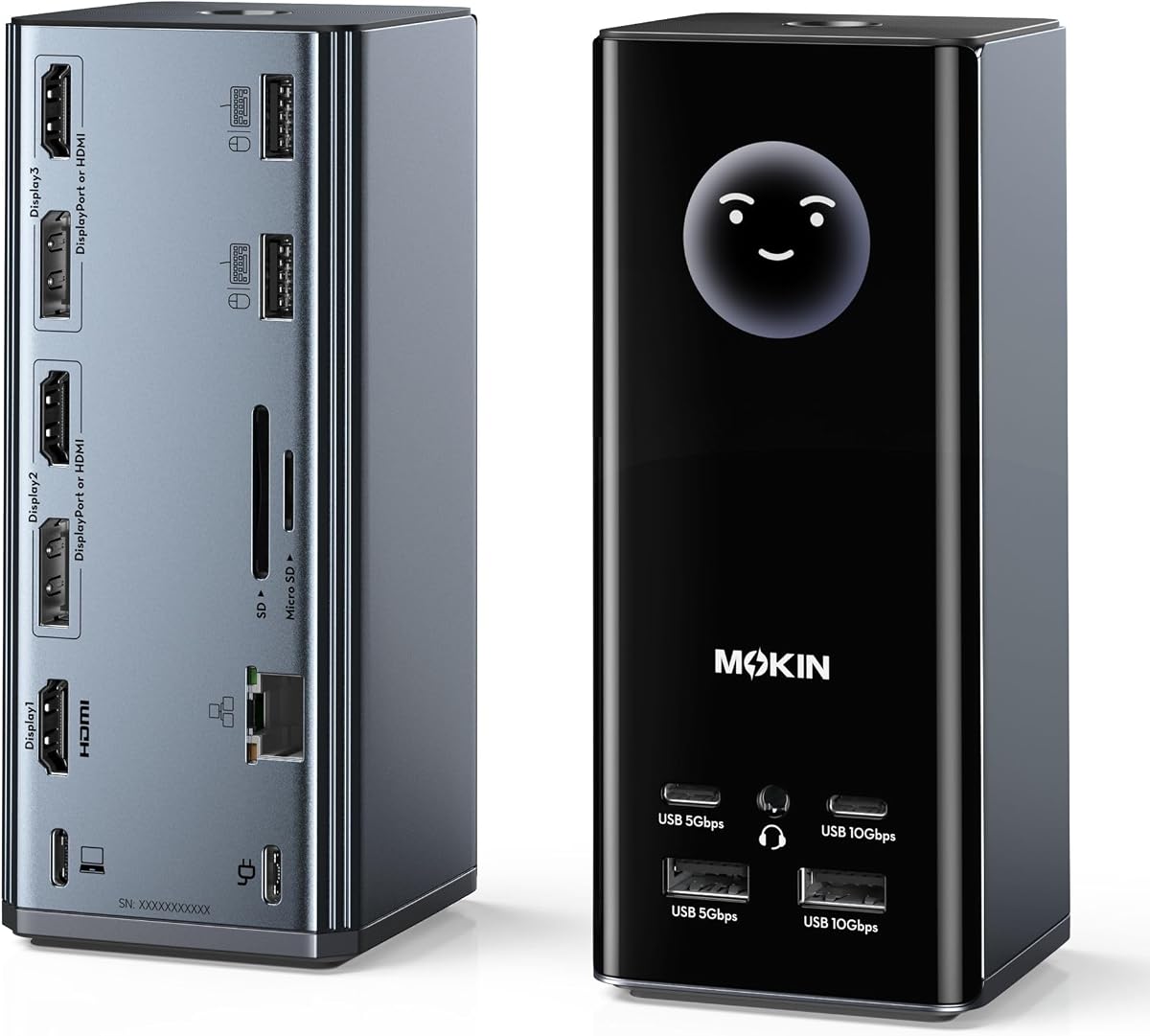
This MOKiN dock brings a smart touch with its integrated LCD that shows weather and system status. Rated 4.2 stars it appeals to users who want functional desk accessories.
We may earn a commission when you buy through this link, at no additional cost to you.
It supports triple 4K 60Hz displays on Windows making it suitable for high-resolution tasks. The privacy lock button provides quick access to turning off screens when needed.
As with many docks Mac users are limited to mirror mode and the power adapter must be purchased separately. The weather feature requires Wi-Fi which is a unique selling point.
If you appreciate smart features and utility this dock is a great addition to your setup. It combines standard docking needs with modern conveniences.
The built-in screen shows weather and charging status without needing to open apps.
A dedicated button lets you lock your screen instantly for privacy in shared spaces.
We may earn a commission when you buy through this link, at no additional cost to you.
This HoDo dock is a budget-friendly choice for basic triple monitor setups. With a 4.3 rating it is valued for its low cost and essential features.
We may earn a commission when you buy through this link, at no additional cost to you.
It offers HDMI DP and VGA outputs which provides flexibility if your monitors have different ports. The 100W charging input is adequate for most laptops under load.
VGA ports can limit overall resolution and Mac users are restricted to mirroring. It is best suited for standard productivity rather than high-end graphic work.
If you need a simple and cost-effective way to add screens this dock will serve you well. It covers the basics without extra frills.
Multiple video outputs allow you to connect different types of monitors easily.
This is one of the most affordable options available for triple display docking.
We may earn a commission when you buy through this link, at no additional cost to you.
Selecting the right dock requires understanding your laptop capabilities and monitor requirements.
Check whether your dock uses native Alt Mode or DisplayLink. Native Alt Mode works without drivers but may not support three extended displays on Macs. DisplayLink requires drivers but offers more flexibility especially on Apple Silicon.
Prioritize DisplayLink if you use a Mac and need extended displays. Otherwise native Alt Mode is simpler for Windows users.
Ensure the dock provides enough wattage to charge your laptop while running three screens. Look for at least 100W input and pass-through if you want a single cable solution for power and data.
Choose docks with included power adapters to avoid compatibility issues. Verify your laptop requires the wattage offered.
Consider the number of USB ports and their speeds. 10Gbps ports are ideal for external drives while standard 5Gbps are fine for keyboards and mice.
Make sure you have enough USB ports for all your peripherals. Fast data transfer speeds improve overall workflow efficiency.
Verify that the dock supports your monitors resolution and refresh rate. Most docks support 4K at 30Hz or 60Hz depending on the number of screens connected.
Check the combined bandwidth limits. Running three 4K screens often requires Display Stream Compression support from your laptop.
Aluminum docks dissipate heat better than plastic ones. Overheating can lead to unstable connections and performance drops during long sessions.
Look for durable materials and a stable base. Good cooling ensures consistent performance under load.
Confirm compatibility with your operating system. Some docks are optimized for Windows while others support macOS and Chrome OS.
Check if drivers are required for your specific OS. Some docks require downloads for full functionality on Macs.
A Gigabit Ethernet port ensures stable internet without Wi-Fi interference. Some newer docks even offer 2.5GbE for faster network speeds.
Prioritize Ethernet if you work with large files. Wired connections are often more reliable for video calls.
Look for brands that offer lifetime technical support. This is crucial if you encounter setup issues or need driver assistance.
Check warranty terms for peace of mind. Reputable brands often provide replacements for defective units.
Connect your laptop to the dock using the provided USB-C cable and ensure your laptop is powered on before connecting the power adapter.
Plug your monitors into the HDMI or DisplayPort outputs and adjust your system display settings to extend the desktop across all screens.
Keep the dock in a well-ventilated area to prevent overheating and regularly update drivers for optimal performance on your operating system.
Not all laptops support the necessary USB-C features. Your laptop must have a full-featured USB-C port with DisplayPort Alt Mode or Thunderbolt to enable video output. Check your laptop specifications before purchasing.
Most docks use MST which Apple does not support for extended displays on Macs. Only docks using DisplayLink technology can provide extended displays on macOS beyond one screen.
Windows users often do not need drivers for native MST docks. Mac users and those using DisplayLink technology will need to install specific drivers for full functionality.
Running three monitors requires significant power. Ensure your dock supports 100W Power Delivery input and pass-through to keep your laptop charged under heavy load.
Both transmit video but DisplayPort often supports higher resolutions and refresh rates. Most modern docks include both options for flexibility with different monitor models.
Some docks support up to four monitors if your laptop supports the bandwidth. Check the specific capabilities of your dock and laptop combination for extra screens.
Many docks sell the power adapter separately to keep costs down. Always verify the product details to see if a charger is included or if you need to buy one.
DisplayStream Compression allows higher resolutions on limited bandwidth. Your laptop GPU must support DSC to run three 4K screens at 60Hz on many docks.
We reviewed ten top docking stations ranging from budget options to premium business-ready solutions. Each model offers unique strengths whether you need high-resolution output or smart features.
Prioritize DisplayLink if you use a Mac or native Alt Mode for simpler Windows setups. Ensure your chosen dock provides enough power and ports for all your peripherals.
Always check current compatibility lists and pricing before making a final decision. The right docking station will transform your workspace into a high productivity station.