
USB C Docking Station Dual Monitor for HP
4.3Editor score
Four video output ports including HDMI and DP
Supports up to 100W PD charging
Affordable price for multi-monitor setups
This guide compares the top docking stations for Dell laptops, evaluating port variety, power delivery, display support, and build quality to help you choose
Finding the right docking station for your Dell laptop can transform your workspace into a powerful productivity hub. A good dock provides essential ports, reliable power delivery, and crisp video output for multiple monitors. It simplifies your setup by reducing cable clutter and ensuring stable connections for all your peripherals.
We compared ten top-rated docking stations based on connectivity options, charging capabilities, and compatibility with Dell models. Our analysis focuses on real-world performance, build quality, and value for money. Each product offers unique strengths depending on whether you need basic expansion or advanced multi-monitor support.
Each pick below highlights key features, pros, cons, and ideal use cases to help you decide. Note that prices and availability change frequently, so check the latest offers before buying. Investing in the right dock ensures your Dell laptop performs at its best whether you are at home or traveling.
4.3Editor score

4.5Editor score

4.3Editor score
This side-by-side comparison evaluates all ten products based on their specifications, connectivity options, and suitability for Dell laptops. Whether you need basic USB expansion or advanced video output, this table helps you identify the right match for your workflow.




The Dell Pro Laptop Docking Station WD25 stands out as the top choice for Dell users seeking reliable connectivity and power. With a rating of 4.5, it delivers robust performance tailored for modern AI PCs. Its native support for up to four high-res displays makes it ideal for multitasking professionals.
We may earn a commission when you buy through this link, at no additional cost to you.
Key strengths include enhanced compatibility with mainstream Dell AI PCs and non-Dell systems alike. The dock offers up to 100W power delivery ensuring your laptop stays charged during intense workloads. IT managers appreciate the flexible management capabilities designed to improve efficiency without disrupting user workflows.
Trade-offs involve a higher price compared to generic hubs and reliance on USB-C ports for all connections. However, the durable USB-C connector and ambidextrous cable routing offset these concerns. The sustainable design with recycled materials also appeals to environmentally conscious buyers.
If you own a Dell laptop and need seamless integration with multiple displays, this dock is the best investment. It ensures your workspace remains clutter-free and productive. Check current availability and pricing before purchasing to confirm it meets your specific setup needs.
Native support for up to four high-res displays allows seamless multitasking across multiple screens.
Built with at least 65% postconsumer recycled materials and features a robust USB-C connector for longevity.
We may earn a commission when you buy through this link, at no additional cost to you.
The Anker Laptop Docking Station Dual Monitor offers exceptional value for users needing extensive port expansion. Rated 4.5 by customers, this 8-in-1 hub supports stunning 4K output on dual displays. It transforms a single USB-C port into a complete workstation for daily tasks.
We may earn a commission when you buy through this link, at no additional cost to you.
Its massive expansion includes HDMI ports Ethernet and microSD readers for versatile connectivity. Power Delivery compatibility allows high-speed pass-through charging up to 85W keeping your laptop powered. The trusted Anker brand ensures reliability with an 18-month warranty included in the package.
Limitations include MacOS compatibility where external monitors show identical screens and Linux incompatibility. These constraints may affect users on those specific operating systems. However, for Windows and ChromeOS users the features provide a balanced mix of performance and affordability.
This dock is ideal for remote workers needing dual monitors and reliable charging. It simplifies cable management while delivering sharp video quality. Verify your laptop supports DP Alt Mode and Power Delivery to ensure full functionality with this hub.
Equipped with USB-A HDMI Ethernet and SD readers to connect a wide range of peripherals easily.
Compatible with USB-C Power Delivery to provide high-speed pass-through charging up to 85W efficiently.
We may earn a commission when you buy through this link, at no additional cost to you.
The Anker Prime Docking Station delivers premium performance with its 14-in-1 design tailored for complex workstations. Boasting a rating of 4.3 it provides 160W total output to charge multiple devices at once. This makes it perfect for power users managing several peripherals and displays daily.
We may earn a commission when you buy through this link, at no additional cost to you.
Key benefits include ultra-fast docking with speeds up to 10Gbps for quick data transfers. You can connect four devices simultaneously through three USB-C ports and one USB-A port. Dual HDMI ports allow streaming or mirroring at up to 2K660Hz ensuring smooth visuals.
Trade-offs include lack of support for ultra-high 5120×1440 resolutions and no Linux compatibility. These limitations might affect specialized users needing those specific configurations. Yet for most Windows and ChromeOS users the dock offers unmatched versatility and charging power.
Choose this dock if you need maximum connectivity and high-speed data transfer capabilities. It streamlines your workspace by consolidating all necessary ports. Check that your laptop supports USB4 or Thunderbolt to leverage the full speed potential of this hub.
Versatile ports offer data transfer speeds up to 10Gbps for efficient file management and connectivity.
Capable of charging up to four devices simultaneously through multiple USB ports with high power output.
We may earn a commission when you buy through this link, at no additional cost to you.
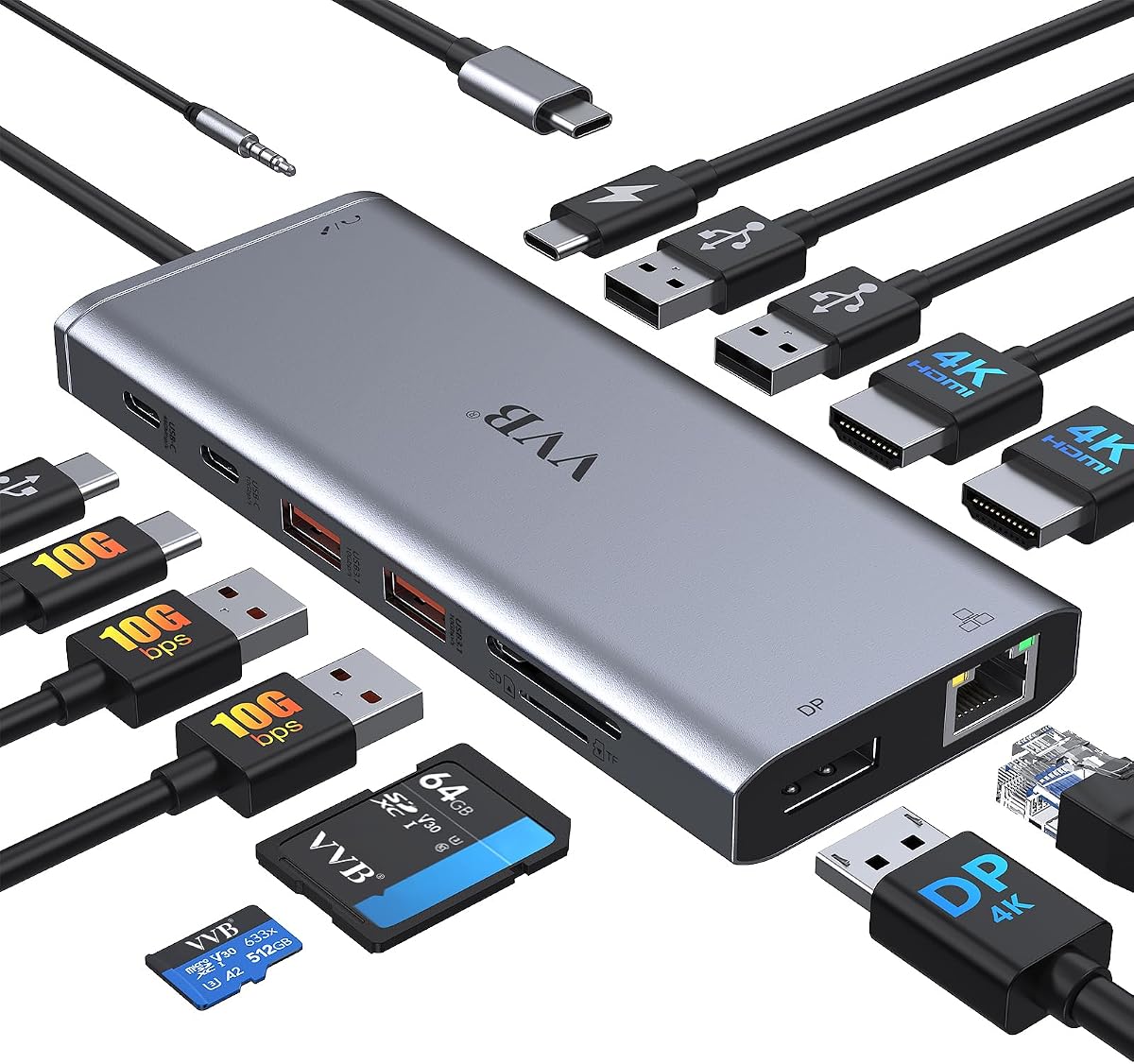
The USB C Docking Station Dual Monitor for HP offers an affordable solution for users needing triple display capabilities. Rated 4.3 by users it provides four video output ports allowing extensive screen real estate. It is an excellent choice for those seeking high functionality without a high price tag.
We may earn a commission when you buy through this link, at no additional cost to you.
Its 8-in-1 design includes HDMI DP and VGA ports supporting up to 4K dual or triple display videos. The 100W USB-C PD charging port ensures your laptop stays powered during extended sessions. USB 2.0 ports allow connecting keyboards and mice without any lag for smooth operation.
Trade-offs include resolution limits to 1080P when VGA is connected and strict compatibility requirements for DP1.4. Users must ensure their laptop supports specific video outputs for full performance. Despite these constraints the dock remains a cost-effective option for multi-monitor setups.
This dock is suitable for budget-conscious buyers needing triple screen setups. It balances cost and features effectively for basic productivity tasks. Verify your laptop specifications before purchasing to ensure compatibility with the required DP1.4 signal output.
Four video output ports allow up to 4K dual or triple display videos for expanded workspace.
Supports up to 100W input and safe output charging to keep your laptop powered efficiently.
We may earn a commission when you buy through this link, at no additional cost to you.
The Anker Nano Laptop Docking Station combines desktop power with travel convenience through its detachable design. Rated 4.2 it features a 13-in-1 dock with a snap-off 6-in-1 hub for portability. This dual functionality eliminates the need for separate devices for home and mobile work.
We may earn a commission when you buy through this link, at no additional cost to you.
Key strengths include triple display support up to 4K660Hz or dual 2K660Hz for expanded screens. It delivers up to 100W Power Delivery charging while running all connected peripherals smoothly. The included 140W adapter ensures stable performance under full load during demanding tasks.
Trade-offs include MacOS limitations to mirrored mode and the requirement of a laptop connection to activate ports. These constraints may not suit macOS users needing extended displays. However for Windows users the setup is simple with plug and play functionality.
This dock is perfect for professionals who travel and need a versatile workstation. It reduces clutter and enhances productivity wherever you are. Check that your laptop supports USB-C video output to maximize the benefits of this innovative docking station.
Features a detachable 6-in-1 hub that snaps off for on-the-go use and home office setup.
Supports up to 3 monitors for data analysts and creators needing extensive screen real estate.
We may earn a commission when you buy through this link, at no additional cost to you.
The USB C Laptop Docking Station Dual Monitor offers comprehensive connectivity for users needing fast data transfer. Rated 4.3 it extends laptop ports into 14 versatile options including HDMI and DisplayPort. Its high-speed capabilities make it ideal for handling large files and external drives efficiently.
We may earn a commission when you buy through this link, at no additional cost to you.
Key features include ultra high-definition 4K dual monitor output and 10Gbps transfer speeds. You can transfer files in seconds from USB flash drivers or hard disks for quick workflows. The Gigabit Ethernet provides a stable and reliable wired network connection for remote work.
Trade-offs involve compatibility notes for some USB-C devices without HDMI DP support and missing charging adapter. Users must ensure their laptop supports Power Delivery for safe charging. Despite this the wide range of ports covers most professional needs.
Select this dock for fast data transfer and reliable network connections. It suits users managing heavy file loads and need stable internet. Confirm your laptop compatibility before purchase to ensure all ports function as expected with your device.
Equipped with USB C and USB A ports for data transfer speeds up to 10Gbps.
Supports dual monitor output up to 4K resolution for expanded visual workspace.
We may earn a commission when you buy through this link, at no additional cost to you.
The Dell WD19S 180W Docking Station provides robust power and connectivity for demanding workstations. Rated 3.8 it delivers high power throughput suitable for complex setups. Its design simplifies your workspace by connecting all peripherals through a single cable.
We may earn a commission when you buy through this link, at no additional cost to you.
Key strengths include a built-in 180W power adapter ensuring ample power for laptop and connected devices. The dock supports high-speed HDMI and DisplayPort outputs for professional-grade displays. It is optimized for Dell Latitude and similar models to ensure seamless integration.
Trade-offs include a lower user rating and limited detailed feature documentation compared to competitors. Some users may find setup instructions sparse requiring technical knowledge to maximize potential. Yet its raw power and compatibility make it a solid choice for enterprise environments.
Choose this dock if you require maximum power delivery for heavy workloads. It is well-suited for IT-managed environments needing reliable performance. Verify your specific Dell model compatibility to avoid issues during setup or use.
Built for the future with high power connections to support demanding setups effectively.
Optimize your workspace by connecting peripherals and monitors with a single USB-C cable.
We may earn a commission when you buy through this link, at no additional cost to you.
The Anker Laptop Docking Station 13-in-1 turns your laptop into a powerful desktop workstation efficiently. Rated 4.0 it features 13 versatile ports including HDMI and DisplayPort for triple displays. This setup is ideal for those needing multiple screens without cluttering their desk.
We may earn a commission when you buy through this link, at no additional cost to you.
Key benefits include running up to 3 external monitors at 1080p660Hz for smooth multitasking. It charges your laptop at 85W and phone at 18W simultaneously for convenient power. The included 135W adapter ensures desktop-grade power delivery right out of the box.
Trade-offs include MacOS limitations to mirror mode and requirement of full-functional USB-C ports. These may not suit users on older hardware or macOS needing extended displays. However for Windows users the compact design and features are highly practical.
Select this dock for a space-saving workstation solution with reliable power. It simplifies your desk setup effectively for daily work. Confirm your laptop supports Thunderbolt 3 or 4 for the best experience with all ports.
Run up to 3 external monitors for expanded multitasking on Windows or ChromeOS.
Compact vertical design saves desk space making it ideal for smaller work areas.
We may earn a commission when you buy through this link, at no additional cost to you.
The Dell WD19 130W Docking Station offers reliable connectivity tailored for Dell Latitude users. Rated 4.0 it supports dual displays and multiple peripherals effectively. Its port variety allows you to connect keyboards, mice, and monitors seamlessly.
We may earn a commission when you buy through this link, at no additional cost to you.
Key features include dual DisplayPort 1.4 output for high-resolution screens and USB-C connectivity. It delivers 90W power to the laptop and includes a 130W power adapter for stable performance. The combo audio and Ethernet ports further enhance its usability for office work.
Trade-offs include lower power delivery compared to newer models and heavier weight for mobility. This dock is best suited for fixed desk setups rather than frequent travel. Still, it provides robust functionality for standard business laptop needs.
Choose this dock for Dell Latitude owners needing dependable display and audio connections. It ensures stable operation with all standard peripherals. Check current compatibility details to confirm your specific Dell model is fully supported.
Features 2x DisplayPort 1.4 for high-resolution video output and professional monitors.
Delivers up to 90W power delivery to keep your laptop charged during use.
We may earn a commission when you buy through this link, at no additional cost to you.
The WD19 Dell Docking Station Dual Monitor renewed version offers value for Dell users seeking reliable connectivity. Rated 4.1 it simplifies setup with standard ports for monitors and peripherals. The renewed condition provides savings while maintaining functional performance for daily tasks.
We may earn a commission when you buy through this link, at no additional cost to you.
Key strengths include supporting various Dell series like Inspiron and Latitude for broad compatibility. It comes with an 180W adapter and USB-C cables ensuring ready to use setup. The single-device approach maximizes productivity by connecting all peripherals effortlessly.
Trade-offs involve potential wear on renewed units and need for firmware updates for full compatibility. Users must check model compatibility before purchasing to avoid issues. Despite this, it remains a cost-effective alternative to new units for many setups.
Opt for this dock if budget is a priority and you own a compatible Dell laptop. It provides essential ports and power without the premium price. Confirm firmware and model details before buying to ensure smooth integration with your system.
Supports select models from Inspiron Venue Precision XPS and Latitude series effectively.
Effortlessly connect peripherals monitors and devices with a single USB-C cable.
We may earn a commission when you buy through this link, at no additional cost to you.
Choosing the right docking station for your Dell laptop involves balancing power, ports, and budget. This guide outlines essential factors to consider for optimal performance.
Power Delivery determines how much wattage your dock sends back to your laptop. For Dell models, look for at least 65W to ensure stable operation, or 100W for high-performance devices. Insufficient power may lead to slow charging or system warnings.
Choose a dock with enough wattage to power your laptop and all connected peripherals simultaneously.
Display support varies based on your monitor needs. Check whether the dock supports single 4K or dual 2K outputs. Some models allow triple displays but may require specific laptop configurations for best results.
Ensure the dock matches your desired number and resolution of external monitors.
Port variety impacts how many devices you can connect without extra adapters. Look for a mix of USB-A, USB-C, HDMI, and Ethernet ports. This flexibility ensures you can connect legacy and modern peripherals alike.
Select a dock with enough ports for your keyboard, mouse, drive, and network needs.
Compatibility with Dell-specific features or standards is crucial for seamless integration. Ensure your laptop supports DP Alt Mode and USB-C video output to avoid connection issues. Some docks are optimized for specific Dell series.
Verify your laptop model supports the dock's protocols before purchasing to prevent problems.
Build quality affects the durability and longevity of the docking station. Metal housings tend to dissipate heat better and withstand daily use. A robust USB-C connector reduces wear over time for frequent plugging.
Invest in a dock with sturdy construction to ensure reliability over the long term.
Price vs features requires balancing budget with necessary functionality. Basic hubs cost less but may lack power or display options. Premium docks offer more capabilities but cost significantly more for everyday needs.
Determine which features are essential for your workflow to avoid overspending.
Warranty coverage protects your investment against defects and malfunctions. Brands like Anker often offer 18-month warranties for peace of mind. Check terms to ensure support covers hardware issues effectively.
Look for products with solid warranty support to minimize risk after purchase.
Thermal management ensures the dock operates safely without overheating during heavy use. Passive cooling designs with aluminum cases help dissipate heat efficiently. Overheating can throttle performance or damage connected devices.
Choose a dock with good thermal design to maintain consistent performance under load.
Connect your laptop to the docking station via the designated USB-C or Thunderbolt port. Ensure the connection is secure to prevent data or video interruptions. Turn on your external monitors and peripherals to detect them automatically.
Position the dock near your laptop for efficient cable management and airflow. Avoid covering vents if the dock has passive cooling to prevent overheating. Keep the dock on a flat, stable surface to reduce physical wear.
Clean the ports with compressed air occasionally to remove dust buildup. Unplug the dock when not in use to save energy and extend component life. Check firmware updates if available to maintain compatibility and performance.
No, not all Dell laptops support USB-C docking stations. You need a laptop with a USB-C or Thunderbolt port that supports video output (DP Alt Mode). Check your specific model's specs before purchasing to ensure compatibility.
Yes, many docking stations support multiple monitors for Dell laptops. Depending on the dock, you can connect two or three displays via HDMI and DisplayPort. Ensure your laptop supports the required video output modes for extended screens.
Many premium docks include a power adapter, but budget models may not. Always check the product details for included accessories before purchasing. Some require you to supply a separate USB-C power adapter.
Most docking stations work with macOS for charging and data, but video output may be limited. Apple devices often restrict extended displays, showing mirrored screens instead. Verify macOS compatibility if you use a Dell laptop with macOS.
Check your laptop's technical specifications on Dell's website or in the user manual. Look for mention of USB-C Power Delivery or charging support on the specific port. This ensures the dock can power your device correctly.
If your dock gets too hot, stop using it immediately to prevent damage. Unplug and let it cool before resuming. Check for proper ventilation and avoid stacking other devices on top of it during use.
Choosing the best docking station for your Dell laptop depends on your specific needs for power, displays, and budget. The Dell Pro WD25 leads for overall performance, while budget options offer great value for essential ports. Evaluate your workflow to find the right fit.
Prioritize power delivery and display support to ensure your workspace meets productivity goals. Quality build and compatibility save you time and hassle in the long run. Invest wisely to transform your laptop into a capable desktop setup.
Remember that prices and availability change frequently so always check current offers before buying. Review the latest compatibility notes to confirm the dock suits your specific Dell model. With the right dock, you can maximize your laptop's potential effortlessly.