Bootable USB Drive for Windows 11
4.0Editor score
Affordable repair solution
UEFI and legacy support
Handmade and tested
This guide compares the top bootable Windows 11 USB drives for installation and recovery, highlighting compatibility, TPM bypass, and repair tools.
Finding a reliable bootable Windows 11 USB drive is essential for system recovery and installation tasks. These tools allow users to bypass hardware restrictions and repair critical boot issues efficiently.
We evaluated ten leading products based on compatibility, included utilities, and ease of use. Our analysis focuses on UEFI support, TPM requirements, and additional recovery features for each option.
Each review highlights key strengths and limitations to help you choose the right drive for your needs. Please note that product availability and pricing may change over time.
4.0Editor score

4.3Editor score

4.2Editor score
The following table provides a side-by-side comparison of all ten products. Review key specifications, features, and compatibility details to find the best match for your system.


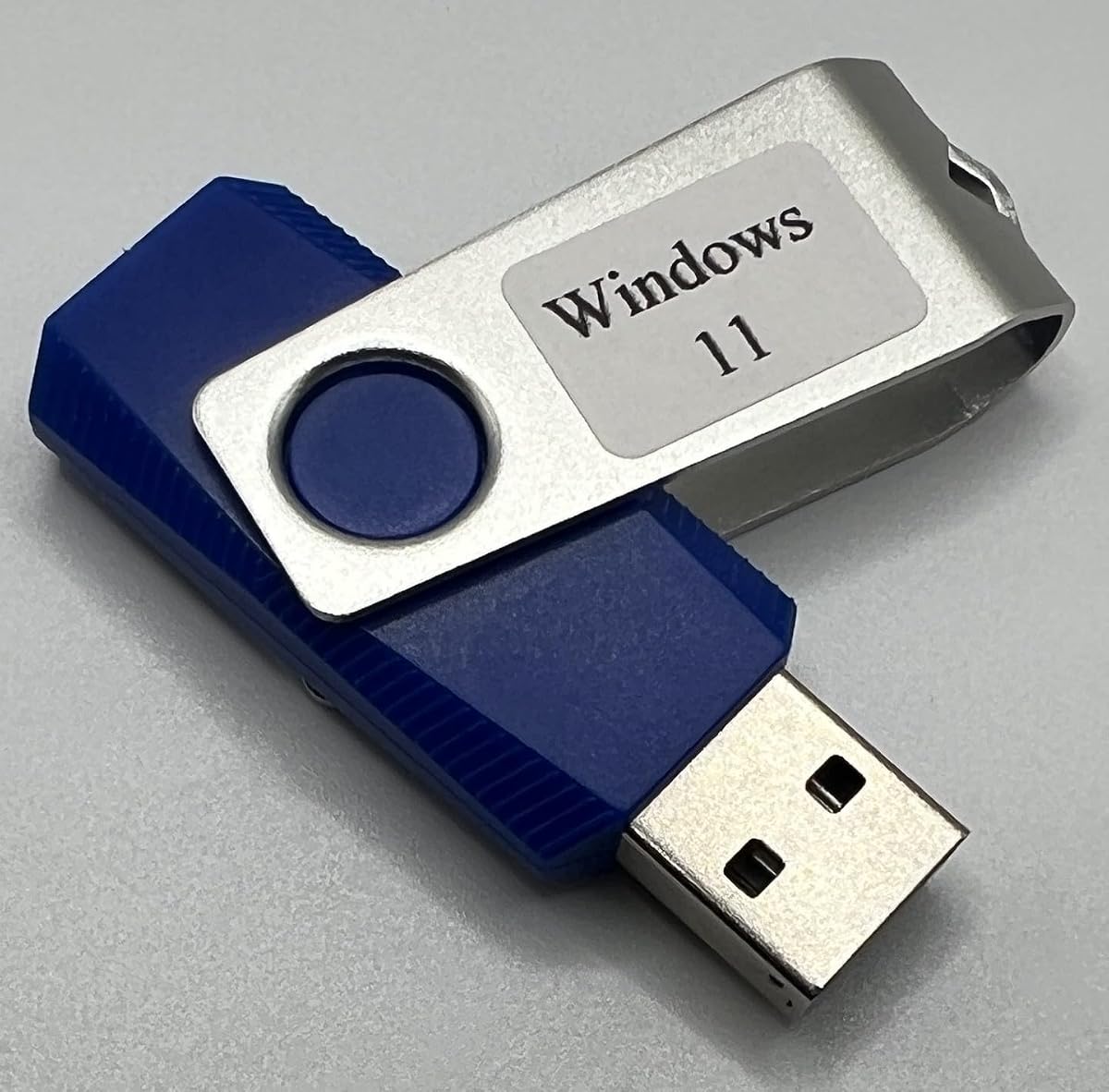


This 64GB bootable USB drive is an excellent solution for installing or repairing Windows 11 systems. It stands out by removing TPM requirements and including network drivers, which simplifies the setup process significantly.
We may earn a commission when you buy through this link, at no additional cost to you.
The drive offers a wide range of features including data recovery, hard drive partitioning, and network connectivity support. It is designed to work with both UEFI and Legacy BIOS systems, making it versatile for various hardware configurations.
While it requires disabling Secure Boot in the BIOS, this is a minor trade-off for the flexibility it provides. The drive does not support Automatic Repair, so users should be prepared for manual intervention if issues arise.
This option is ideal for users who need a reliable all-in-one solution for Windows installation and system maintenance. Its comprehensive toolset makes it a top choice for both beginners and experienced technicians.
This USB drive allows installation on systems without TPM chips, ensuring wider hardware compatibility.
Network drivers for WiFi and LAN are pre-installed, ensuring internet access after setup without extra downloads.
We may earn a commission when you buy through this link, at no additional cost to you.
This budget-friendly USB drive provides a straightforward solution for reinstalling and repairing Windows 11 systems. It is a great choice for users looking for a cost-effective way to handle basic system recovery tasks.
We may earn a commission when you buy through this link, at no additional cost to you.
The drive focuses on essential functionality, supporting both UEFI and Legacy BIOS systems. It is handmade and tested by a family-owned business, ensuring quality control and reliability.
However, the 8GB capacity limits its ability to store additional tools or large files. It also cannot repair hardware failures, so users should verify their system health before purchase.
Ideal for basic reinstallations, this drive offers value without unnecessary features. It is best suited for users who simply need to refresh their operating system.
This option delivers essential recovery features at a lower price, making it accessible for budget-conscious users.
The product is handmade and tested locally, providing a personal touch and reliable quality assurance.
We may earn a commission when you buy through this link, at no additional cost to you.
This 32GB USB drive is designed for users working with both Windows 10 and 11 systems. It provides a flexible solution for installation and recovery, with a focus on compatibility across various brands.
We may earn a commission when you buy through this link, at no additional cost to you.
The drive includes network drivers and supports UEFI and Legacy BIOS systems. It bypasses TPM requirements, allowing installation on a wider range of hardware without needing additional steps.
Users should note that Secure Boot must be disabled for the drive to function properly. The drive does not support Automatic Repair, so manual troubleshooting may be necessary in some cases.
This option is well-suited for users who need a versatile tool for multiple Windows versions. Its compatibility and included tools make it a reliable choice for system maintenance.
Supports both Windows 10 and 11, making it a versatile tool for diverse system environments.
Designed to work with all major computer brands, ensuring broad usability across different hardware setups.
We may earn a commission when you buy through this link, at no additional cost to you.
This 64GB USB drive offers advanced features for users who need comprehensive system repair and diagnostic tools. It includes WinPE utilities, password reset options, and hardware testing capabilities.
We may earn a commission when you buy through this link, at no additional cost to you.
The drive supports both new builds and older computers, making it a versatile choice for various systems. It bypasses TPM requirements and includes network drivers for seamless connectivity after installation.
While it provides extensive tools, users may need to disable Secure Boot to use the drive. The lack of Automatic Repair means manual intervention is required for certain boot issues.
Ideal for technicians or advanced users, this drive delivers a robust set of features. Its comprehensive toolkit makes it a premium choice for detailed system maintenance and troubleshooting.
Includes WinPE tools for backup, recovery, and diagnostic tasks, providing extensive system management capabilities.
Offers password reset features for Windows user accounts, helping users regain access to locked systems.
We may earn a commission when you buy through this link, at no additional cost to you.
This bootable USB drive is unique in its ability to work with Secure Boot enabled, eliminating the need for BIOS changes. It provides a secure and official way to reinstall Windows 11 or 10.
We may earn a commission when you buy through this link, at no additional cost to you.
The drive downloads genuine Windows directly from Microsoft, ensuring users receive the latest official version without outdated ISOs. It also offers US-based support through live chat or email.
However, it only supports UEFI BIOS on 64-bit systems, making it incompatible with older Legacy BIOS setups. Users must also supply their own Windows product key for activation.
This option is best for users who prioritize security and official software sources. Its compatibility with Secure Boot makes it a hassle-free choice for modern PCs.
Works with Secure Boot enabled, allowing users to avoid BIOS changes and maintain system security.
Downloads genuine Windows directly from Microsoft, ensuring you receive the latest official version without modifications.
We may earn a commission when you buy through this link, at no additional cost to you.
This recovery drive is specifically designed for Windows 11 systems, offering essential tools for system repair and restoration. It includes detailed instructions to guide users through the process.
We may earn a commission when you buy through this link, at no additional cost to you.
The drive supports both Windows 11 Professional and Home editions, providing a versatile solution for different versions. It is UEFI compliant and designed for 64-bit architectures.
However, it is limited to Windows 11 and may not be suitable for users with older systems. The lower rating suggests potential reliability or compatibility issues reported by some users.
Ideal for Windows 11 users needing basic repair tools, this drive provides a straightforward solution. Its included instructions make it accessible for users unfamiliar with system recovery.
Designed specifically for Windows 11, ensuring optimized compatibility with the latest operating system features.
Includes comprehensive instructions for system recovery and repair, making it easier for beginners to use.
We may earn a commission when you buy through this link, at no additional cost to you.
This 64GB USB drive includes a license key for Windows installation, making it a convenient option for users needing activation. It also offers password recovery tools and network drive support.
We may earn a commission when you buy through this link, at no additional cost to you.
The drive supports both Windows 10 and 11, providing flexibility for different systems. It includes instructions for redeeming the activation key and supports high-speed performance.
However, Secure Boot may need to be temporarily disabled for the drive to work. The lower rating indicates potential issues with compatibility or reliability for some users.
Ideal for users seeking a complete package with activation, this drive offers a range of tools. Its included license key simplifies the installation process significantly.
Includes a license key for Windows installation, eliminating the need to purchase activation separately.
Features 64GB high-speed storage, ensuring faster data transfer and installation times compared to slower drives.
We may earn a commission when you buy through this link, at no additional cost to you.
This 64GB USB drive is designed for users who need comprehensive WinPE repair tools alongside installation media. It supports Windows 7, 10, and 11, providing broad compatibility for various systems.
We may earn a commission when you buy through this link, at no additional cost to you.
The drive includes video tutorials and full instructions to guide users through the installation and repair process. It allows users to backup files, troubleshoot startup problems, and recover data.
However, Secure Boot may need to be disabled for the drive to function. It is also limited to 64-bit systems, which may not support older hardware.
Ideal for users needing detailed repair tools, this drive offers a well-rounded package. Its WinPE suite and video tutorials make it accessible for a range of technical skill levels.
Includes WinPE utilities for backup, recovery, and diagnostic tasks, offering extensive system management capabilities.
Provides video tutorials to guide users through installation and booting, making the process easier for beginners.
We may earn a commission when you buy through this link, at no additional cost to you.
This 30-in-1 bootable USB drive offers a wide range of utilities for installation, recovery, and system maintenance. It supports Windows 11, 10, 8.1, and 7, providing versatility for various needs.
We may earn a commission when you buy through this link, at no additional cost to you.
The drive is ready-to-use, eliminating the need to download large system files or create bootable media manually. It is reusable, making it a cost-effective solution for frequent use.
However, it does not include a Windows license key, so users must supply their own activation. Results may vary depending on the condition of the computer and the cause of issues.
Ideal for users who need a multi-tool utility for various systems, this drive offers extensive features. Its versatility and reusability make it a valuable addition to any toolkit.
Includes 30-in-1 utilities for installation, recovery, and maintenance, offering extensive functionality in one drive.
Ready-to-use out of the box, eliminating the need to create bootable media manually.
We may earn a commission when you buy through this link, at no additional cost to you.
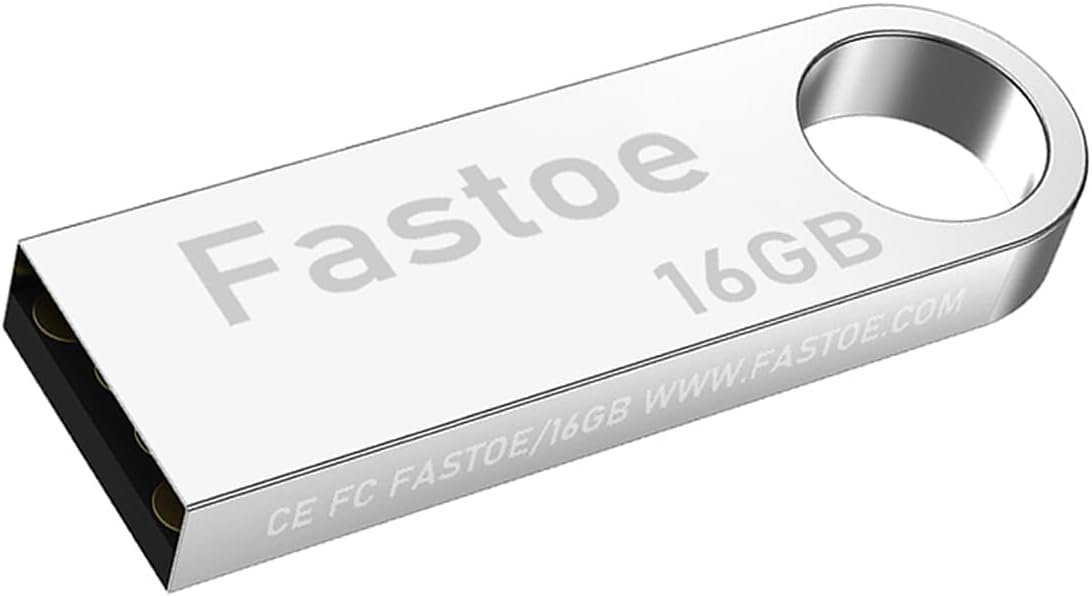
This USB flash drive offers a plug-and-play solution for installing Windows 11 on 64-bit systems. It includes the latest official version and ensures a clean installation free from viruses or spyware.
We may earn a commission when you buy through this link, at no additional cost to you.
The drive is designed for ease of use, with online technical support available for assistance. It is compatible with major PC brands and laptops, providing broad hardware support.
However, the 16GB capacity limits additional storage for tools or files. The lower rating suggests potential compatibility or reliability issues for some users.
Ideal for users seeking a simple and clean installation experience, this drive offers convenience. Its plug-and-play setup makes it an accessible choice for basic installation tasks.
Designed for plug-and-play use, requiring minimal setup steps to install Windows 11 on compatible systems.
Includes the latest official version of Windows 11, ensuring you receive the most up-to-date features.
We may earn a commission when you buy through this link, at no additional cost to you.
Selecting the right bootable USB drive depends on your specific needs and system configuration. This guide outlines key factors to consider when making your choice.
Storage capacity determines how much data you can store on the USB drive. Larger capacities like 64GB allow for additional tools and files beyond installation media.
Choose a drive with sufficient capacity to meet your needs for installation, recovery, and any extra utilities you may require.
Some Windows 11 installations require a TPM chip, but certain bootable USB drives can bypass this requirement. This feature expands compatibility to older hardware.
Look for drives that explicitly state they support systems without TPM if you plan to install Windows 11 on older devices.
Modern systems typically use UEFI BIOS, while older ones may rely on Legacy BIOS. Ensure the USB drive supports the BIOS type used by your computer.
Choose a drive that supports both UEFI and Legacy BIOS if you are unsure of your system's configuration or need broad compatibility.
Some USB drives come with additional utilities like password reset, network drivers, and hardware testing tools. These can be invaluable for system maintenance.
Consider the utilities included with the drive to ensure it meets your specific repair or recovery needs beyond basic installation.
Secure Boot is a security feature in modern PCs. Most bootable USB drives require disabling Secure Boot, but a few support it natively.
Choose a drive that works with Secure Boot if you want to avoid BIOS changes, or be prepared to disable it if your drive requires it.
Ensure the USB drive supports the specific version of Windows you need. Some drives support multiple versions like 10, 11, and 8.1, while others are version-specific.
Check the drive's specifications to confirm it is compatible with your target operating system version.
User-friendly drives include detailed instructions, video tutorials, and clear on-screen guidance. This is particularly important for users unfamiliar with system recovery.
Look for drives that offer comprehensive support materials to simplify the installation and repair process.
Reliability ensures the drive works consistently without corruption or errors. Vendor support can help resolve any issues during setup or use.
Choose a drive from a reputable seller with available support options to ensure a smooth experience.
Insert the USB drive into your computer's USB port and restart your system. Access the boot menu by pressing the designated key, such as F12 or Del, during startup.
Follow the on-screen instructions to install or repair your Windows system. Ensure you have backed up important data before proceeding to avoid data loss.
After use, safely eject the USB drive before removing it. Store the drive in a cool, dry place to prevent physical damage and ensure longevity.
Most drives do not include a product key. You will need to use your existing license or purchase one separately. Some drives may include an activation key, but verify before purchase.
No, these drives are designed for software repair and OS reinstallation. They cannot fix physical hardware problems like faulty motherboards or RAM.
Reinstalling Windows typically erases data. Always back up your files before using any installation or recovery USB drive to prevent data loss.
Most drives require disabling Secure Boot in BIOS. A few models support Secure Boot, so check the product details for specific instructions before use.
These drives are designed for PC systems. They are not compatible with Apple Silicon Macs, Chromebooks, or ARM-based devices.
Most drives are designed for 64-bit systems. Check product specifications to confirm compatibility with 32-bit systems if you have one.
Installation errors often relate to hard drive issues. Contact the seller for diagnosis or consider using the included diagnostic tools for troubleshooting.
Internet may be needed for updates. Some drives include network drivers, but ensure your hardware supports internet access post-installation.
Choosing the right bootable USB drive depends on your specific needs. The 64GB Bootable USB Drive 3.2 offers excellent overall features, while the budget option is great for basic recovery.
Prioritize factors like TPM bypass, storage capacity, and included utilities when selecting a drive. Ensure the drive matches your system's BIOS type and operating system requirements.
Always check current product availability and reviews before purchase. Prices and specifications may change, so verify details for the most accurate information.